
In a world where smartphones are practically an extension of ourselves, a malfunctioning home button can feel like a personal crisis. It’s like trying to navigate a maze blindfolded—frustrating and a bit ridiculous. But fear not! Changing that pesky home button on your iPhone can be simpler than finding a Wi-Fi signal in a coffee shop.
Table of Contents
ToggleUnderstanding the Home Button Functionality
The home button serves as a crucial component of iPhone navigation. It enables users to return to the main screen, access the app switcher, and activate Siri. This button enhances overall usability and efficiency.
Importance of the Home Button
Home buttons offer essential functions that streamline device usage. They provide quick access to various apps and features, which enhances user experience. Users rely on the home button for multitasking, allowing them to navigate seamlessly between tasks without fuss. This functionality boosts productivity significantly. A functional home button proves vital for users who frequently jump between applications, ensuring efficient communication and task management.
Common Issues with the Home Button
A range of issues can occur with the home button. Users may encounter unresponsiveness, where the button fails to activate the desired action. Physical damage often leads to problems, including cracks or wear due to prolonged use. Furthermore, software glitches may contribute to improper functionality, causing delays or erratic behavior. Users might also experience intermittent issues, where the button works inconsistently. Identifying these problems early can simplify the repair process and ensure reliable performance.
Preparing for the Change
Preparing for the home button change involves gathering necessary tools and ensuring your data is secure.
Required Tools and Materials
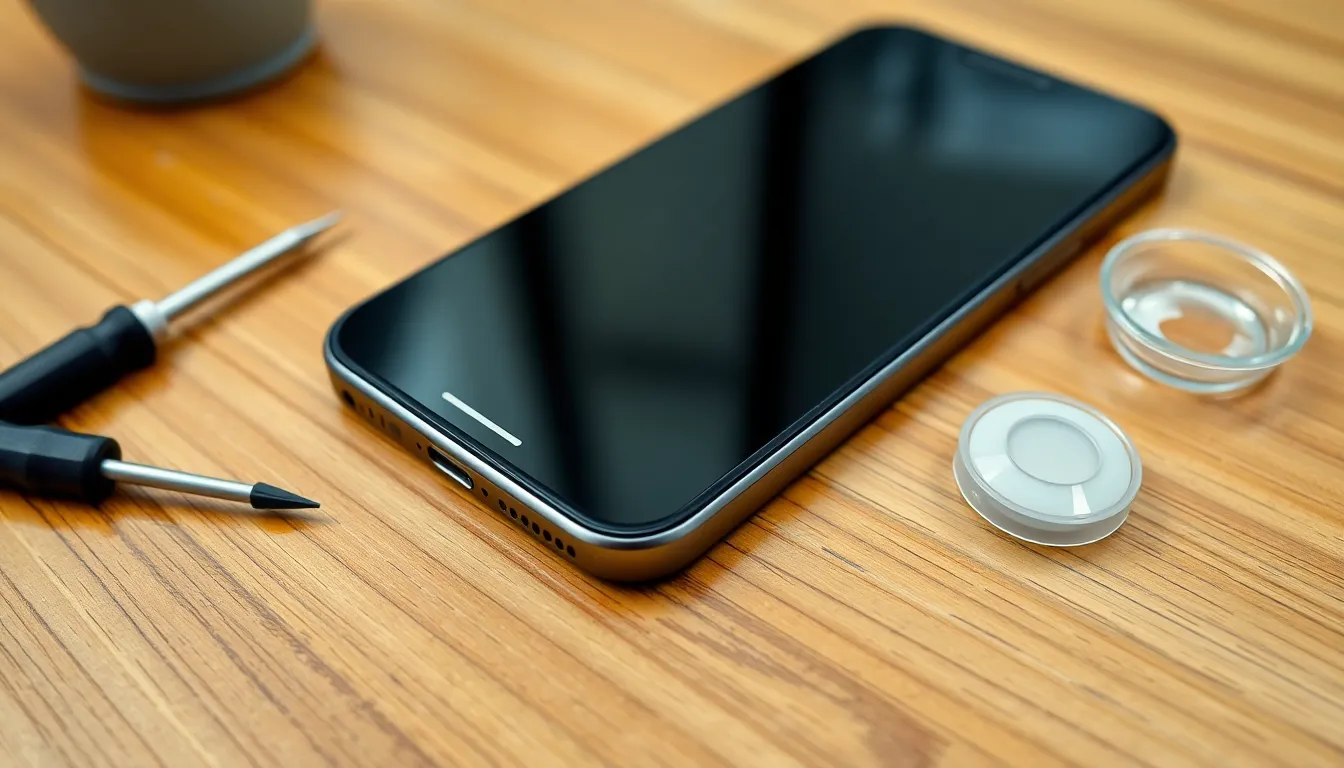
Gather a set of essential tools for the replacement. A Pentalobe screwdriver is needed to open the device. A Phillips screwdriver helps with internal screws. Tweezers are useful for delicate parts. A suction cup allows easy removal of the screen. Lastly, a new home button replacement ensures functionality.
Backing Up Your Device
Back up the iPhone to avoid data loss during the process. Use iCloud or iTunes for a smooth backup experience. Access iCloud settings to enable backups, or connect the device to a computer for iTunes backup. Verify that all important data, including photos and contacts, is securely stored before proceeding. Choose this step as a precaution to protect personal information.
Step-by-Step Guide to Changing the Home Button
Replacing the home button on an iPhone involves several important steps. Careful execution of each step ensures a successful replacement.
Powering Down the iPhone
Start by completely powering down the iPhone. Press and hold the side button until the power off slider appears. Swipe the slider to turn off the device. This action prevents potential damage during the repair process. Once powered down, you can safely proceed to the next step.
Removing the Screen
Next, remove the screen carefully. Use a Pentalobe screwdriver to unscrew the screws near the charging port. After this, place a suction cup near the screen’s edge and gently pull it to create a gap. Insert a plastic pry tool into the gap to lift the screen gradually. Ensure to avoid damaging any delicate components while performing this task.
Detaching the Old Home Button
After removing the screen, focus on the old home button. Locate the connections beneath the screen. Carefully detach the ribbon cable connected to the home button using tweezers. Remove any screws holding the button in place. A gentle but firm approach prevents additional damage during removal.
Installing the New Home Button
Install the new home button with precision. Position it where the old button was located. Firmly connect the ribbon cable ensuring a secure fit. After installation, test the button’s response before reassembling the device. Proper alignment guarantees optimal functionality.
Reassembling the Device
Reassemble the iPhone carefully. Align the screen back into position and press gently to secure it. Replace the screws near the charging port to finish installation. Power on the device to ensure everything operates correctly. Checking the home button functionality confirms successful replacement.
Troubleshooting Common Problems
When issues arise after replacing the home button, specific troubleshooting steps can help.
Screen Not Responding
A common problem is an unresponsive screen. If the display doesn’t react when tapping, users should check the screen connectors for proper attachment. Reopening the device and ensuring all cables are securely connected often fixes this issue. Sometimes, a full device reset may resolve software glitches causing the screen to malfunction. A faulty replacement part can also lead to unresponsiveness, so verifying the quality of the new button is essential.
Home Button Malfunctioning
Home button malfunctions can also occur after replacement. If the button doesn’t register presses, inspecting the ribbon cable is critical. Misalignment during installation might cause this issue, so proper positioning is necessary. Testing the hardware settings through the device options could provide insight as to whether the issue is software-related. If the home button still fails to function correctly, considering a replacement from a trusted source is advisable to avoid future problems.
Replacing a malfunctioning home button on an iPhone can significantly enhance the device’s functionality and user experience. With the right tools and a clear step-by-step approach, anyone can tackle this repair with confidence.
By addressing common issues and understanding the repair process, users can restore their device’s efficiency and productivity. Remember to back up important data before starting the replacement to avoid any potential loss.
With a little patience and care, the new home button will provide seamless access to apps and features, ensuring the iPhone operates as intended.