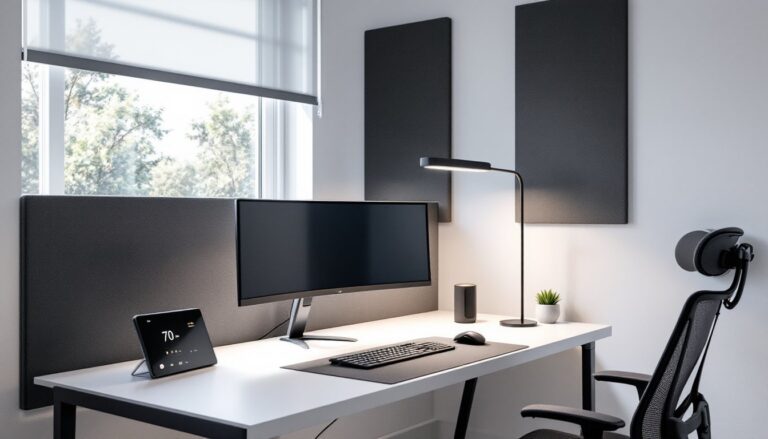
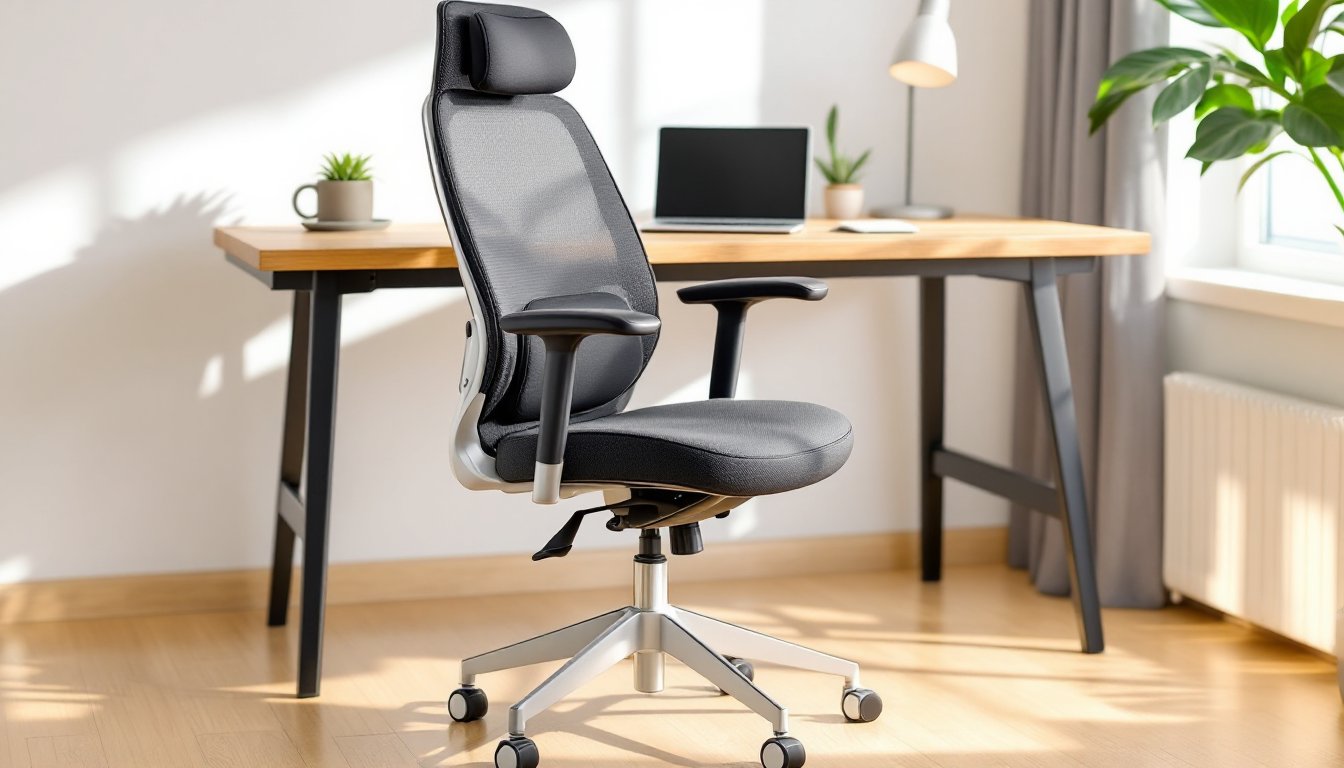
If you’ve spent any time working from home, you’ve probably felt it, that nagging ache between your shoulder blades, the stiffness in your lower back, or the sharp pain that radiates down your leg after a few hours at the desk. Your office chair isn’t just a piece of furniture: it’s the foundation of your workday comfort and long-term spinal health. A poorly designed chair can turn an eight-hour shift into an endurance test, while the right one supports your natural posture and keeps discomfort at bay. Choosing a back pain office chair isn’t about picking the most expensive model or the one with the flashiest features, it’s about understanding what your body needs and how different adjustments can make or break your comfort.
Table of Contents
ToggleKey Takeaways
- A proper back pain office chair with adjustable lumbar support is essential to maintain your spine’s natural curves and prevent lower back strain during extended work hours.
- Seat depth, height, and armrest positioning must be tailored to your body; improper setup forces muscles to compensate, leading to fatigue and chronic pain.
- Set your office chair correctly by adjusting seat height so feet rest flat on the floor, positioning lumbar support in the small of your back, and ensuring armrests keep shoulders relaxed at 90-degree elbows.
- Movement breaks every 30–60 minutes, core strengthening exercises, and an ergonomic desk setup with proper monitor and keyboard placement are just as critical as your chair for reducing back pain.
- Even the best office chair won’t eliminate back pain if you neglect posture checks, stay sedentary all day, or have a misaligned workspace—combine chair quality with active habits for lasting relief.
Why Your Office Chair Matters for Back Health
Your spine has three natural curves: cervical (neck), thoracic (mid-back), and lumbar (lower back). When you sit for extended periods, gravity and poor posture flatten these curves, especially in the lumbar region. Without proper support, the muscles and ligaments surrounding your spine work overtime to keep you upright, leading to fatigue, strain, and eventually chronic pain.
A quality office chair is engineered to maintain those natural curves. The lumbar region, the five vertebrae in your lower back, bears most of your upper body weight when seated. If your chair doesn’t support this area, your muscles compensate, which is why so many people feel soreness right above the belt line after a long day.
Beyond lumbar support, seat height and depth affect how your pelvis tilts. Too high, and your feet dangle, putting pressure on your thighs and cutting off circulation. Too low, and your knees rise above your hips, causing your pelvis to tilt backward and your spine to round. Either scenario stresses the discs between your vertebrae.
Armrests matter more than most people realize. If they’re too high, you’ll shrug your shoulders all day, tensing your trapezius muscles. Too low, and you’ll lean to one side or hunch forward to rest your arms, twisting your spine.
The bottom line: your chair is a structural support system. Treat it like one.
Essential Features to Look for in a Back Pain Office Chair
Not all office chairs are built the same. When you’re shopping specifically to address or prevent back pain, certain features are non-negotiable. Here’s what to prioritize.
Lumbar Support and Adjustability
Lumbar support is the single most important feature for preventing lower back pain. Look for chairs with built-in lumbar cushions or adjustable lumbar mechanisms that let you dial in the exact curve and depth you need. Some models use a knob or lever to adjust the prominence of the lumbar pad, this is ideal because everyone’s spine is shaped differently.
Adjustability extends beyond just the lumbar region. Your chair should offer height adjustment via a pneumatic lift (the lever under the seat), tilt tension control (how much resistance you feel when leaning back), and tilt lock (to lock the backrest at your preferred angle). If you like to recline slightly while typing, adjustable tilt tension lets you do that without feeling like you’re about to tip over.
Some advanced chairs include dynamic lumbar support, which flexes as you move. While not essential, it’s a nice-to-have if you shift positions frequently. Static lumbar pads work fine for most people, as long as they’re positioned correctly.
Avoid chairs with fixed backrests or non-adjustable lumbar cushions unless you’ve sat in the exact model and confirmed it fits your body. One size does not fit all when it comes to spinal support.
Seat Depth, Height, and Armrest Positioning
Seat depth is often overlooked but critical. Ideally, you should be able to sit with your back against the backrest and still have 2-4 inches of clearance between the edge of the seat and the back of your knees. Too much depth, and you’ll either perch forward (losing lumbar support) or feel pressure behind your knees. Too shallow, and your thighs won’t be fully supported.
Many ergonomic chairs offer seat depth adjustment, a slider mechanism that moves the seat pan forward or backward. If you’re under 5’4″ or over 6’2″, this feature becomes especially important.
Seat height should allow your feet to rest flat on the floor (or on a footrest) with your knees bent at roughly 90-110 degrees. Your thighs should be parallel to the floor or angled slightly downward. This position keeps your pelvis neutral and reduces pressure on your lower back.
Armrests should be adjustable in height at minimum. When your arms rest on them, your shoulders should be relaxed, not elevated or slumped. Your elbows should form a 90-degree angle with your forearms parallel to the floor. Some chairs also offer width, depth, and pivot adjustments for armrests, which is useful if you type on a keyboard tray or frequently reach for a mouse.
If armrests aren’t adjustable and they don’t fit your body, they’re worse than useless, they’ll force you into awkward positions all day.
How to Set Up Your Office Chair to Prevent Back Pain
Even the best chair won’t help if it’s set up wrong. Here’s a step-by-step process to dial in your ergonomics. Grab a tape measure if you want to be precise.
-
Start with seat height. Adjust the seat so your feet rest flat on the floor and your knees are level with or slightly below your hips. If your desk is too high and raising the seat lifts your feet off the ground, use a footrest.
-
Adjust seat depth. If your chair has a depth slider, position the seat pan so there’s about three fingers’ width (roughly 2-3 inches) between the seat edge and the back of your knees. This ensures good thigh support without cutting off circulation.
-
Set lumbar support. Sit all the way back in the chair. Adjust the lumbar pad (height and depth) until it fills the curve of your lower back, you should feel gentle, consistent pressure in the small of your back, not in your mid-back or tailbone.
-
Position armrests. Adjust height so your shoulders are relaxed and your elbows rest comfortably at about a 90-degree angle. Your forearms should be roughly parallel to the floor. If the armrests push your shoulders up or force you to reach, lower or remove them.
-
Set tilt tension and lock. Lean back in the chair. If the backrest tips too easily or feels too stiff, adjust the tilt tension knob (usually under the seat). Some people prefer a slight recline (100-110 degrees) to take pressure off the spine, if that’s you, lock the tilt at that angle. Others prefer an upright, locked position.
-
Check monitor and keyboard placement. Your monitor should be at arm’s length, with the top of the screen at or slightly below eye level. Your keyboard should be close enough that you’re not reaching forward. These aren’t chair adjustments, but they affect how you sit.
Re-check your setup every few weeks. Pneumatic lifts can settle, and your preferences may change as your body adapts. Homeowners building a dedicated comfortable office chairs setup often benefit from periodic ergonomic reviews.
Additional Tips for Reducing Back Pain While Working from Home
Your chair is only part of the equation. Here are practical strategies to support your back throughout the workday.
Move frequently. Sitting, even in a perfect chair, compresses spinal discs and reduces circulation. Set a timer to stand, stretch, or walk for 2-3 minutes every 30-60 minutes. Even shifting your weight or changing your seated position helps.
Strengthen your core. Weak abdominal and back muscles force your spine to do all the stabilizing work. Basic exercises like planks, bird-dogs, and bridges (done a few times per week) build the muscular endurance needed to sit with good posture.
Use a footrest if needed. If your desk height is fixed and raising your chair lifts your feet off the floor, a footrest keeps your knees and hips aligned. A simple angled footrest (widely available for under $30) works for most people.
Mind your desk setup. If you’re leaning forward to see your screen or reaching for your mouse, you’ll sabotage even the best chair. Keep your monitor at eye level and your keyboard within easy reach. Many DIYers who’ve tackled woodworking projects find that building a custom monitor stand or keyboard tray improves ergonomics significantly.
Consider a sit-stand desk. Alternating between sitting and standing throughout the day reduces the total time your spine is compressed. If a full sit-stand desk isn’t in the budget, a desktop riser can convert any existing desk. Just make sure your standing posture is also ergonomic, monitor at eye level, elbows at 90 degrees.
Wear supportive footwear. If you stand part of the day, wear shoes with good arch support. Standing barefoot or in slippers on hard flooring can throw off your alignment and contribute to lower back pain.
Invest in an anti-fatigue mat. If you use a standing desk, a cushioned mat reduces strain on your feet, knees, and lower back. Look for mats at least 3/4 inch thick with a non-slip bottom.
Check your posture regularly. Set reminders to do a quick body scan: Are your shoulders relaxed? Is your lower back supported? Are your feet flat? Small corrections add up.
Some home office setups benefit from professional guidance. If you’re dealing with chronic pain or have a history of back issues, consider a consultation with a physical therapist or ergonomics specialist. They can identify issues specific to your body and workspace.
For those who enjoy hands-on projects, resources like Ana White and Fix This Build That offer plans for building custom desk accessories, monitor stands, and footrests that can be tailored to your exact ergonomic needs.
Conclusion
Choosing the right back pain office chair is about matching features to your body and your work habits. Prioritize adjustable lumbar support, proper seat depth and height, and armrests that let your shoulders relax. Once you’ve found a chair that fits, take the time to set it up correctly, small tweaks make a big difference. Combine a quality chair with regular movement, core strengthening, and an ergonomic desk setup, and you’ll be well on your way to pain-free workdays.